QA
Playwright로 하는 Component Test와 E2E Test Coverage
Henby여기어때
2025년 9월 2일
원문에서 보기 ↗안녕하세요. 서비스웹개발팀의 프론트엔드 개발자 헨비 입니다.
이번 고객센터 채팅 상담 프로젝트는 Web과 Mobile Web , 그리고 “여기어때 ” 앱 내의 WebView(Android/iOS) 환경에서 동시에 작동하는 서비스입니다.
실시간 상호작용과 멀티 디바이스 환경에서 안정성을 보장하기 위해 단위 테스트와 E2E 테스트를 도입했습니다.
특히 핵심 사용자 여정(접속→연결→메시지/파일→종료)은 수동 테스트만으로는 리스크를 충분히 검증하기 어렵다고 판단했습니다.
이러한 이유로 테스트 코드의 필요성을 절실히 느꼈고, 그 과정과 선택을 이번 글에서 공유하고자 합니다.
1. 왜 Playwright를 선택했는가
GUI E2E Test Tool 중의 양대산맥인 Cypress 와 Playwright 가 있습니다.
각자의 장점과 단점을 알아보고 왜 Playwright를 선택하게 되었는지 같이 체크 해보겠습니다.
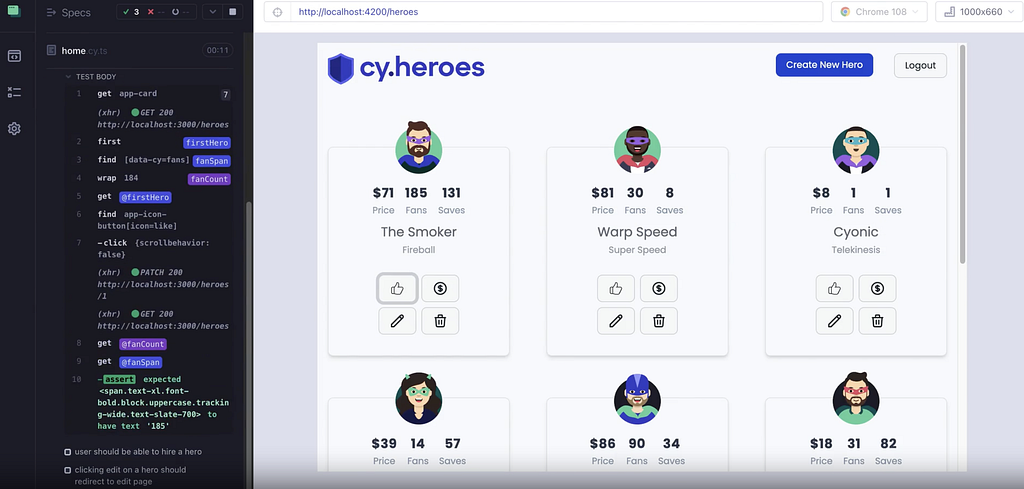
Cypress 장점
- GUI 기반 Test Runner와 Time‑Travel 덕분에 개발자 경험(DX)이 뛰어납니다.
- 방대한 생태계와 네트워크 스텁 기능, 그리고 친절한 문서가 초보자 진입 장벽을 낮춰줍니다.
- 설정과 사용 흐름이 단순해서 빠르게 시작할 수 있습니다.
- 결론적으로 테스트코드의 이해와 작성이 쉽고 UI가 이쁩니다.
Cypress 단점
- 브라우저 엔진과 탭, 도메인 제어에 제약이 있어, 복잡한 시나리오 테스트에는 부적합할 수 있습니다.
- Safari(WebKit)를 지원하지 않아 iOS Safari 호환성을 보장하기 어렵습니다.
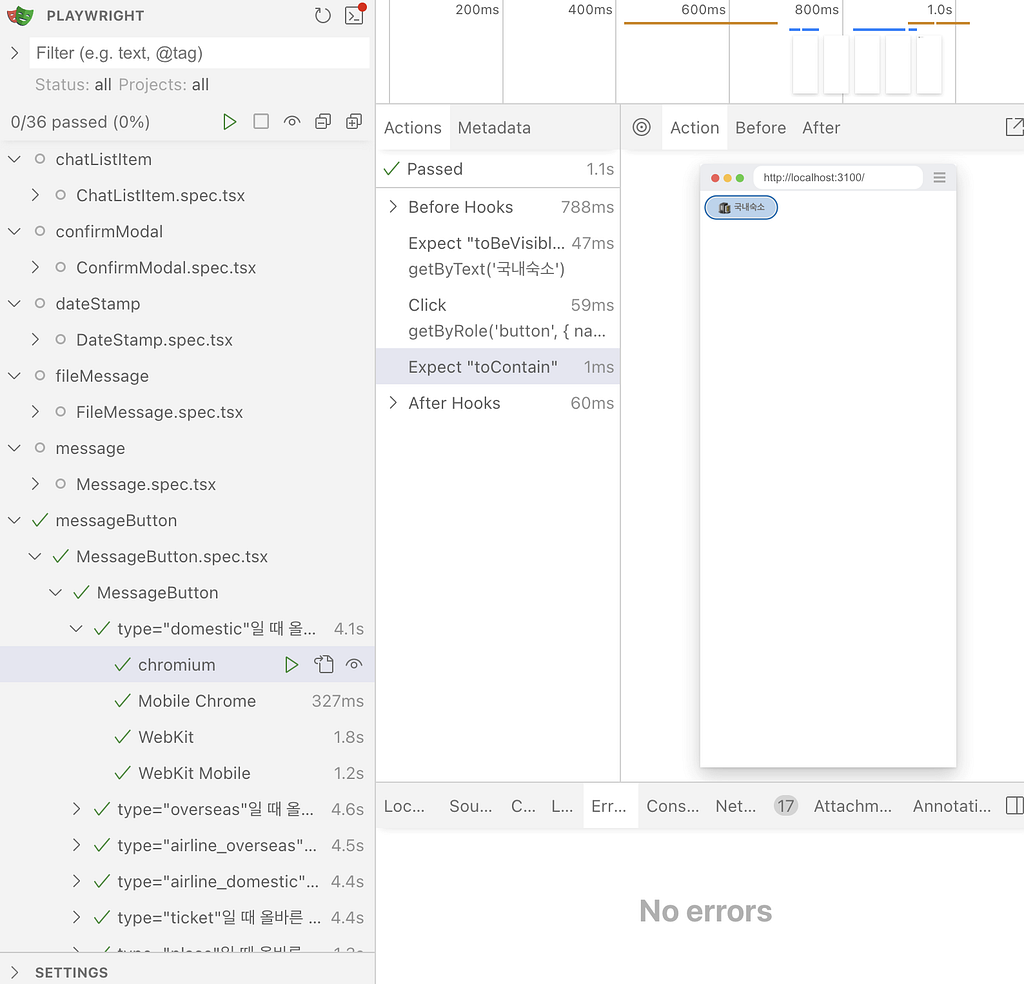
Playwright 장점
- Chromium, Firefox, WebKit까지 모두 공식 지원해 크로스 브라우징 커버리지가 넓습니다.
- 멀티 탭, 권한 설정, 네트워크 제어, 디바이스 및 GPS 시뮬레이션 등 고급 브라우저 제어 기능 이 훨씬 풍성합니다.자동 대기, 병렬 실행, Trace/비디오/스크린샷 캡처 같은 견고한 테스트 인프라가 기본 포함되어 있습니다.
Playwright 단점
- Cypress의 UI Runner처럼 한눈에 보여지는 인터페이스와 같은 개발자 통합 경험은 아니어서, 일부에겐 다소 불편할 수 있습니다.
선택 기준과 결론
- 본 서비스는 고객센터 “실시간 채팅” 앱으로 iOS Safari(WebKit) 호환성과 모바일 뷰 재현성이 매우 중요합니다. 또한 파일 업로드/미디어 재생, 웹소켓 기반 메시징 등 브라우저 레벨 제어가 필요했습니다.
- 멀티 브라우저(WebKit 포함)와 모바일 디바이스 프로필과 후에 포커싱/권한/다운로드까지 포괄하는 제어가 필요했기에 Playwright를 선택했습니다. 더군다나 Web과 Webview 모두에서 사용되는 앱이므로 많은 멀티 브라우저와 다양한 모바일 디바이스 프로필이 있다는 점이 매력적 이였습니다.
Component Test , E2E가 모두 필요한 이유
- 실시간 채팅은 “UI 상호작용의 촘촘함 ”과 “End-To-End 시나리오의 연속성”이 모두 중요합니다.
- 컴포넌트 테스트(CT)로는 채팅에 접속해서 바로 만나는 다양한 컴포넌트들의 핵심 UI의 상태 전이(비활성/활성, 파일 선택, 미디어 렌더와 닫기)를 빠르고 결정적으로 검증했습니다.
- 채팅 접속 → 카테고리 선택 → 상담 연결 → 파일 전송(이미지/비디오) → 종료까지 실제 사용자 여정을 통합 검증했습니다.
- 두 층을 병행함으로써 “UI 동작 신뢰도”와 “사용자 플로우 신뢰도”를 동시에 담보했습니다.
2. 목표와 범위
- 사용하는 모든 컴포넌트의 테스트 + E2E 커버리지 총 80%를 목표로 했습니다.
- 수집 방식은 Vite 인스트루멘테이션(istanbul) + Playwright afterEach 수집 + 사후 병합으로 구성해, 브라우저 실행 환경의 라인 커버리지를 산출했습니다.
E2E 테스트로 달성하려 한 것
- 유저 타입에 따른 접속과 리다이렉트 검증
- 카테고리 선택 및 상담원 연결 검증
- 회원 정보에 따른 분기 처리 검증
- 일반 텍스트 메세지와 이미지, 비디오 파일 첨부 메세지 검증
- 유저 타입에 따른 상담 종료 분기 처리 및 종료 처리 검증
- 각 E2E를 Chromium/WebKit/모바일 프로필에서 동일 시나리오 검증
검증하는 사용자 E2E 사용자 플로우
- 비회원 사용자의 접속 → 카테고리 선택 → 상담원 연결 → 메세지 보내기 → 상담 종료 버튼 과 팝업 체크 → 상담 종료
- 회원의 첫 접속 → 카테고리 선택 → 상담원 연결 → 회원 정보 수신 → 상담원 연결 → 메세지 보내기 → 상담 종료
- 기존 회원의 접속 → 카테고리 선택 → 채팅 리스트 체크 → 상담원 연결 → 이미지, 비디오 파일 첨부 메세지 → 상담 종료
3. 프로젝트 구성과 테스트 환경
본 프로젝트는 React 19와 Vite 기반의 SPA로, TanStack Router로 라우팅을 구성하고 Sendbird SDK로 실시간 채팅을 처리합니다.
테스트는 Playwright를 채택하여 Chromium/WebKit/모바일 프로필의 멀티 프로젝트로 병렬 실행하며, 컴포넌트 테스트(CT)와 E2E를 병행 운용합니다.
E2E 커버리지는 E2E_COVERAGE 환경변수로 활성화되는 Vite용 Istanbul 인스트루멘트 플러그인(serve 시 주입)과 Playwright afterEach 픽스처 수집, 사후 병합 스크립트로 리포트를 생성합니다.
실행은 npm run test-e2e / test-ct / test-e2e:coverage + :ui 스크립트로 표준화했습니다.
Package.json 구성 예시
:ui가 붙는다면 playwright 특유의 GUI로 하는 테스트를 할 수 있습니다.
"scripts": {
    ...,
    "test-e2e": "playwright test -c playwright.config.ts",
    "test-e2e:ui": "playwright test -c playwright.config.ts --ui",
    "test-ct": "playwright test -c playwright-ct.config.ts",
    "test-ct:ui": "playwright test -c playwright-ct.config.ts --ui",
    "test-e2e:coverage": "rm -rf .nyc_output coverage-e2e; E2E_COVERAGE=1 playwright test -c playwright.config.ts; node tests/coverageScript/merge-e2e-coverage.mjs",
    "test-e2e:coverage:ui": "rm -rf .nyc_output coverage-e2e; E2E_COVERAGE=1 playwright test -c playwright.config.ts --ui; node tests/coverageScript/merge-e2e-coverage.mjs"
  },

  "devDependencies": {
    "@playwright/experimental-ct-react": "^1.54.2",
    "@playwright/test": "^1.54.2",
    "@testing-library/dom": "^10.4.0",
    "@testing-library/react": "^16.2.0",
    "istanbul-lib-coverage": "^3.2.2",
    "istanbul-lib-instrument": "^6.0.3",
    "istanbul-lib-report": "^3.0.1",
    "istanbul-reports": "^3.1.7",
  }
5. Component Test
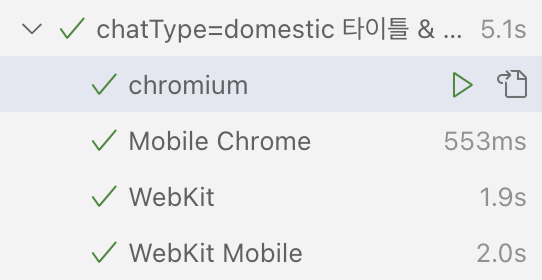
컴포넌트 테스트는 conponents/ 폴더 내에 각 컴포넌트 별 *.spec.tsx 에 정의하고 있습니다.
playwright-ct.config.ts 에서 PC 크롬, 모바일 크롬, Safari(WebKit) 를 테스트 합니다.
projects: [
    {
      name: 'chromium',
      use: { ...devices['Desktop Chrome'], locale: 'ko-KR' },
    },
    {
      name: 'Mobile Chrome',
      use: { ...devices['Pixel 5'], viewport: { width: 375, height: 844 }, locale: 'ko-KR' },
    },
    {
      name: 'WebKit',
      use: {
        ...devices['Desktop Safari'],
        browserName: 'webkit',
        viewport: { width: 375, height: 844 },
        locale: 'ko-KR',
        headless: true,
        trace: 'on-first-retry',
      },
    },
    {
      name: 'WebKit Mobile',
      use: {
        ...devices['iPhone 12'],
        browserName: 'webkit',
        viewport: { width: 375, height: 844 },
        locale: 'ko-KR',
        headless: true,
        trace: 'on-first-retry',
      },
    },
  ],
먼저 예시로 보여 드릴 FileMessage component는 상담사와 유저가 첨부한 이미지, 비디오 파일 메세지를 보여주고 클릭시 모달로 재생 또는 확대 할 수 있기 때문에 클릭 이벤트와 재전송 기능을 위해 총 2가지 클릭 이벤트를 가지고 있습니다.
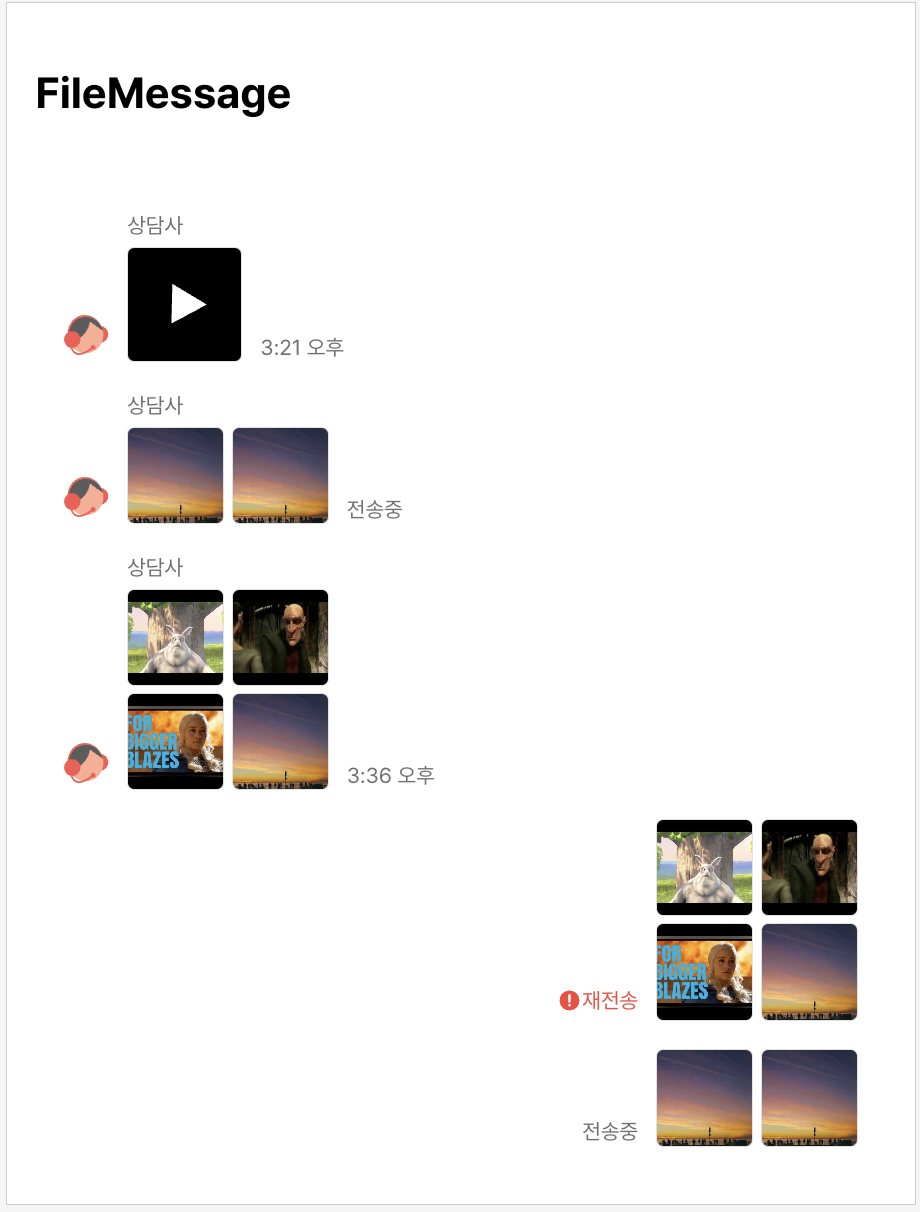
 test('나의 이미지 4개의 파일 메세지 컴포넌트의 랜더링 체크', async ({ mount, page }) => {
    const log: any[] = [];
    const userType = 'me';
    // 클릭 이벤트와 로그 적재
    const onClickMedia = () => {
      log.push('onClickMedia');
    };

    await mount(
      <MediaViewerProvider>
        <FileMessage
          status="sent"
          timestamp={new Date(1747721095510 + 1900000).valueOf()}
          fileInfoList={imageFileInfoList4}
          userType={userType}
          onClickMedia={onClickMedia}
        />
      </MediaViewerProvider>,
    );

    const imageElement = page.locator('img');
    await expect(imageElement).toBeVisible();
    // 랜더링 체크
    await imageElement.click();
    // 클릭 이벤트

    await expect(imageElement).toHaveCount(4);
    // 4개의 파일이 잘 랜더링 되었는지
    await expect(page.getByText('3:36 오후')).toBeVisible();
    // 전송 시간의 랜더링 체크
  });
또한 비디오 같은 대용량 파일의 경우 전송 실패 상태에 “재전송” 이벤트를 가질 수 있습니다.
test('나의 비디오 1개의 파일 메세지 컴포넌트의 재전송 기능 및 랜더링 체크', async ({ mount, page }) => {
    const log: any[] = [];
    const userType = 'me';
    const onClickError = () => {
      log.push('onClickError');
    };
    await mount(
      <MediaViewerProvider>
        <FileMessage
          status="error"
          timestamp={new Date(1747722095510).valueOf()}
          fileInfoList={videoFileInfoList}
          userType={userType}
          onClickError={onClickError}
        />
      </MediaViewerProvider>,
    );
  await expect(page.getByText('재전송')).toBeVisible();
  const button = page.locator('.message-error', { hasText: '재전송' });
  await expect(button).toBeVisible();
  await button.click();
  expect(log).toContain('onClickError');
});
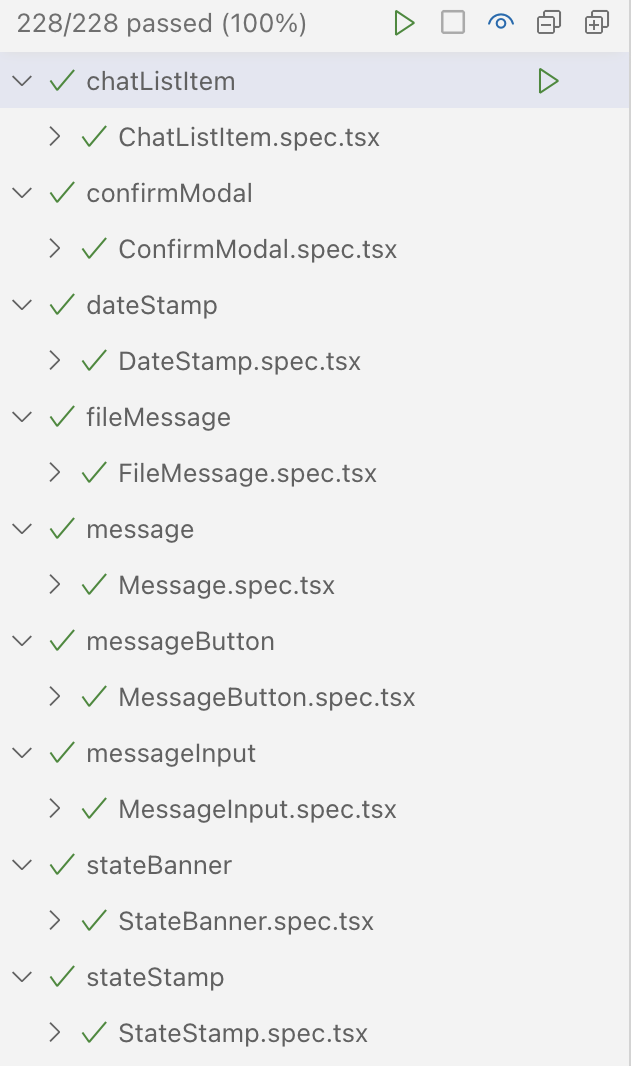
57개의 테스트를 4개의 브라우저에서 모두 검증하여, 총 228개의 테스트를 통과 했습니다.
5. E2E Coverage Test 실행 흐름 및 요약
1.초기화
- rm -rf .nyc_output coverage-e2e
- 이전 커버리지 조각(.nyc_output)과 리포트(coverage-e2e)를 삭제합니다.
- 테스트 실행 + 인스트루멘테이션
- E2E_COVERAGE=1 playwright test -c playwright.config.ts
- E2E_COVERAGE=1로 Vite dev 서버가 커버리지 인스트루멘트 모드로 뜹니다.
- 앱 코드가 제공될 때, Vite가 소스에 커버리지 수집 코드를 주입하고 index.html에 coverage 스텁을 삽입합니다.
- E2E 스펙들이 실행되고, 각 테스트가 끝날 때마다 커버리지 스냅샷이 .nyc_output에 떨어집니다.
- 리포트 생성
- node merge-e2e-coverage.mjs
- .nyc_output의 여러 json 조각을 병합하여 coverage-e2e/index.html과 텍스트 요약을 생성합니다.
5. 파일별 역할
- istanbul-inject.ts
- Vite 플러그인. E2E_COVERAGE=1일 때만 동작.
- src/**/*.{ts,tsx,js,jsx} 변환 시 커버리지 코드 삽입(transform).
- index.html에 window.coverage 초기 스텁 스크립트 삽입(transformIndexHtml).
- 시점: 테스트 시작 시 dev 서버가 소스를 서빙할 때.
const instrumenter = createInstrumenter({ esModules: true, produceSourceMap: false });

export default function istanbulInstrument(): Plugin {
  return {
    name: 'istanbul-instrument',
    enforce: 'post',
    apply: 'serve',
    transform(code, id) {
      if (!process.env.E2E_COVERAGE) return null;
      // 커버리지 수집이 비활성(E2E_COVERAGE 미설정)인 경우 변환하지 않음
      if (!/src\/.*\.(tsx?|jsx?)$/.test(id)) return null;
      // src 디렉토리 내 TS/TSX/JS/JSX 파일만 대상
      if (id.includes('node_modules')) return null;
      // 외부 라이브러리는 변환 제외
      try {
        // 커버리지 코드 삽입 수행
        const instrumented = instrumenter.instrumentSync(code, id);
        return { code: instrumented, map: null };
        // Vite가 요구하는 반환 형태: 코드와 소스맵(생략)
      } catch (e) {
        console.warn('[istanbul-instrument] 실패:', id, e);
        return null;
      }
    },
    transformIndexHtml(html) {
      if (!process.env.E2E_COVERAGE) return html;
      // 커버리지 수집이 비활성인 경우 원본 반환
      return html.replace(
        '</head>',
        `<script>(function(){window.__coverage__ = window.__coverage__ || {};})();</script></head>`
      );
    },
  };
}
- fixtures.ts
- Playwright 확장 fixtures. afterEach 훅에서 window.__coverage__를 읽어 .nyc_output/*.json으로 저장하고 테스트 아티팩트로 첨부.
- 시점: “각 테스트가 끝날 때마다” 실행.
base.afterEach(async ({ page }, testInfo) => {
  // 각 테스트 종료 후 실행되는 훅: 브라우저 페이지에서 커버리지 수집
  try {
    // 페이지 컨텍스트에서 window.__coverage__를 읽어옴
    const coverage = await page.evaluate(() => (globalThis as any).__coverage__);
    if (coverage) {
      const nycDir = path.resolve(process.cwd(), '.nyc_output');
      // 디렉토리가 없으면 생성
      if (!fs.existsSync(nycDir)) fs.mkdirSync(nycDir, { recursive: true });
      const file = path.join(nycDir, `coverage-${Date.now()}-${Math.random().toString(36).slice(2)}.json`);
      // 커버리지 맵을 JSON으로 저장
      await fs.promises.writeFile(file, JSON.stringify(coverage), 'utf-8');
      testInfo.attachments.push({ name: 'coverage', path: file, contentType: 'application/json' });
    }
  } catch (e) {
  }
});
- merge-e2e-coverage.mjs
- .nyc_output의 다수 json을 병합 후 coverage-e2e에 HTML 리포트와 텍스트 요약 생성.
- 시점: 전체 테스트 완료 직후 단 한 번 실행.
const nycDir = path.resolve(process.cwd(), '.nyc_output');
if (!fs.existsSync(nycDir)) {
  process.exit(0);
}
const files = fs.readdirSync(nycDir).filter((f) => f.endsWith('.json'));
// 디렉토리 내 json 파일 목록 수집
const map = createCoverageMap({});
// 빈 커버리지 맵 생성
for (const f of files) {
  try {
    const data = JSON.parse(fs.readFileSync(path.join(nycDir, f), 'utf-8'));
    map.merge(data);
  } catch (e) {
    console.warn('커버리지 파일 파싱 실패:', e);
  }
}
const context = createContext({ dir: 'coverage-e2e', coverageMap: map });
try {
  // HTML 리포트 생성기
  const htmlReport = reports.create('html');
  const textSummary = reports.create('text-summary');
  // 텍스트 요약 리포트 생성기
  htmlReport.execute(context);
  textSummary.execute(context);
  console.log('\nE2E 커버리지 리포트 생성 완료: coverage-e2e/index.html');
} catch (e) {
  console.error('커버리지 리포트 생성 중 오류:', e);
  process.exit(1);
}
요약
- before: 폴더 정리
- during: Vite 플러그인이 인스트루먼트 → 테스트 실행 → fixtures가 테스트마다 수집
- after: merge-e2e-coverage.mjs 스크립트로 리포트 생성
7. E2E coverage Test
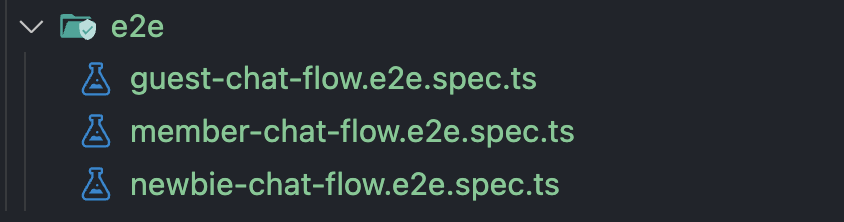
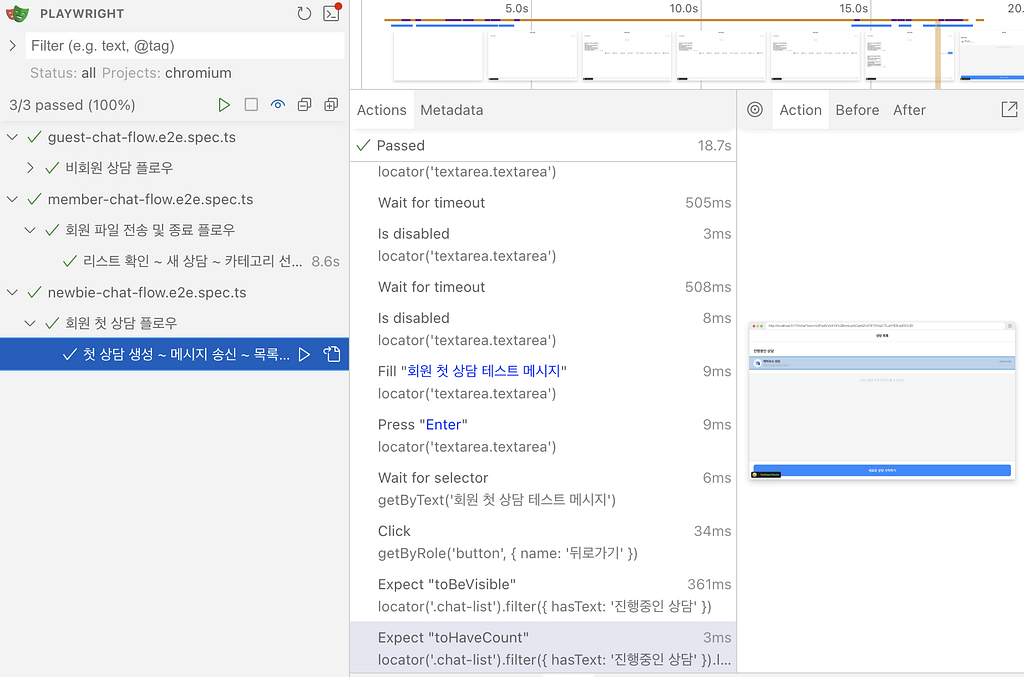
E2E Test는 3개의 시나리오를 가지고 있습니다.
비회원 유저의 접속
- 채팅 목록이 없으므로 자동으로 센드버드 그룹 채널을 개설하여 “/chat/{chatid}” 로 redirect
- 상담 카테고리 버튼들이 랜더링 → 카테고리 선택
- 상담원과 연결되며 MessageInput 이 활성화
- 메세지 보내기
- 상담 종료 버튼을 클릭하여 종료 경고 팝업이 뜨는지 체크
- 상담 종료 버튼 선택
- 완전한 상담사와의 연결 종료
처음 진입하는 회원의 접속
- 비회원 유저와 비슷하여 생략
기존에 상담을 진행했던 회원의 접속
- 특정 userId를 가지고 채팅에 접속
- 기존 상담 목록이 있는지 체크
- “새로운 상담하기” 버튼 클릭
- 센드버드에 새로운 그룹 채널을 개설 후 redirect되는지 체크
- 이미지 파일, 비디오 파일을 각각 1회씩 업로드 체크
- 상담 종료 진행

중요 기능의 테스트를 완료하여 목표 Coverage 인 80%를 달성하였습니다.
각 항목의 설명을 하자면
- Statements (구문 커버리지) 소스 코드의 모든 구문(statement) 들 중 테스트에서 실제 실행된 구문의 비율입니다.
- Branches (분기 커버리지) 조건문(if/else, switch/case, 삼항연산자 등)의 모든 분기(branch) 가 테스트에서 실행된 비율입니다 예: if (cond) {…} else {…} → true/false 두 경우 모두 커버돼야 100%.
- Functions (함수 커버리지) 정의된 함수/메서드들이 한 번이라도 호출 되었는지의 비율입니다.
- Lines (라인 커버리지) 소스 파일의 코드 라인(line) 단위로 카운트, 가장 직관적이고 많이 보는 지표 입니다.
사용자 플로우 중심의 E2E 테스트를 하는 Front-End 에서 80%의 커버리지는 프로젝트의 핵심 기능이 문제가 되었을 때, 문제를 발견할 가능성이 높습니다.
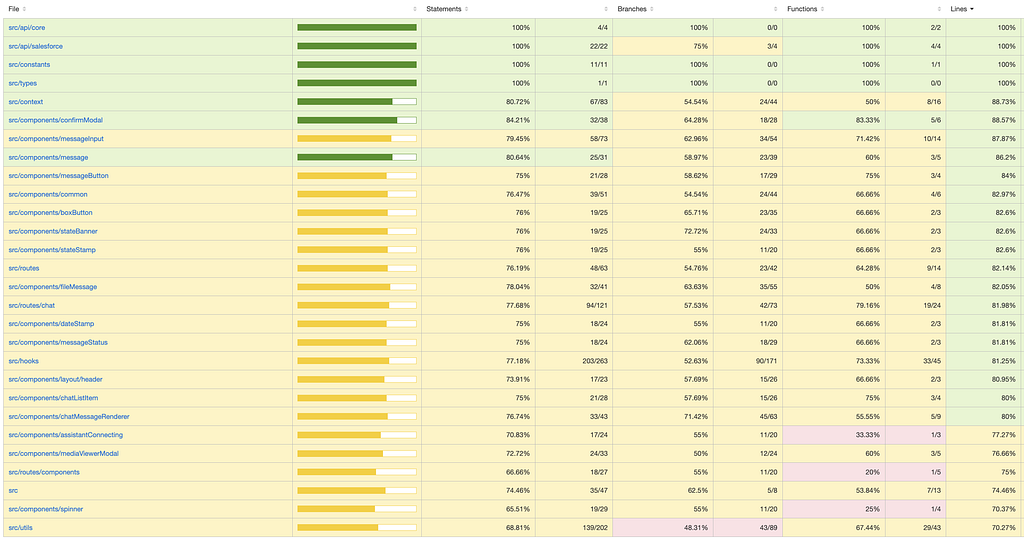
설정한대로 coverage-e2e/index.html 에 리포트도 생성이 됩니다. 어느 부분이 모자라는지 체크할 수 있습니다.
8. 결론
이번 프로젝트에서 Cypress 와 Playwright 를 비교한 끝에, 멀티 브라우저(WebKit 포함) 지원과 고급 브라우저 제어 기능 을 제공하는 Playwright 를 채택했습니다. 이는 고객센터 실시간 채팅이라는 서비스 특성상 iOS Safari 호환성, 파일 전송, 미디어 재생, 웹소켓 메시징 등 브라우저 레벨 제어가 핵심이었기 때문입니다.
Playwright 기반으로 컴포넌트 테스트와 E2E 테스트를 병행 하면서, UI 단위의 세밀한 상호작용과 실제 사용자 여정 전체를 동시에 검증할 수 있었습니다. 그 결과 라인 커버리지 80%를 달성하였고 서비스의 핵심 플로우가 안정적으로 동작하고 있음을 확인했습니다.
앞으로 고객상담채팅에 많은 개선 기능들이 추가될 예정으로 그 전에 다양한 컴포넌트의 검증과 E2E 테스트를 구성하여 안정적인 서비스를 구축했습니다.
향후에는 상대적으로 낮은 분기 커버리지 개선, 모바일 디바이스 테스트 시나리오 확대, CI/CD 파이프라인 테스트 자동화 등을 통해 테스트 체계를 한층 더 견고하게 구축할 예정입니다.
마지막까지 긴 글을 읽어주셔서 감사합니다. 이번 경험이 다른 프론트엔드 개발자분들이 테스트 커버리지를 고민하고 구축할 때 작은 참고가 되길 바랍니다.